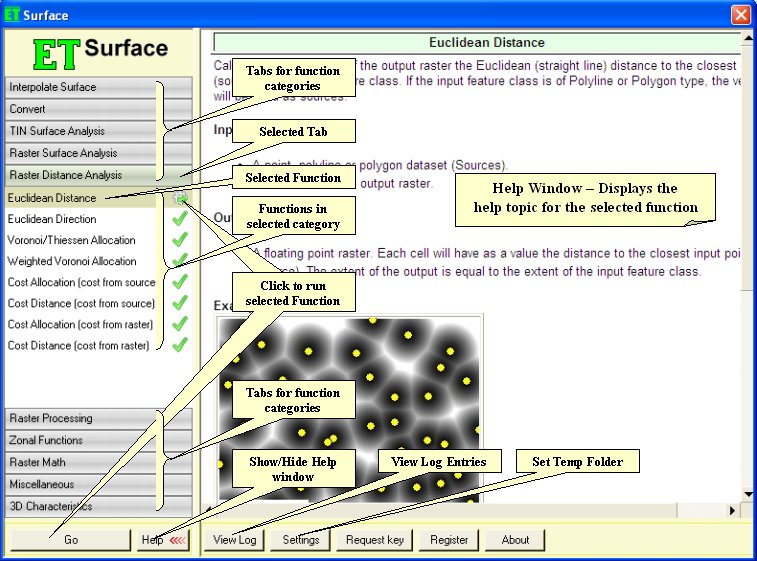
The Main Dialog of ET Surface gives access to all the functions of the software except the Profile Extractor and the Terrain Viewer.
Selecting the tab for specific category of functions will display a list of all functions in this category. Next to each function there is an icon indicating the status of the function
-
 indicates that the function is available with no limitations
 -
 indicates that the software is not registered and if you run the
function the limitations of the unregistered software apply
indicates that the software is not registered and if you run the
function the limitations of the unregistered software apply -
 appears when a licensed (or free) function is selected. Clicking on the
icon will execute the function.
appears when a licensed (or free) function is selected. Clicking on the
icon will execute the function. -
 appears when a non-licensed function is selected. Clicking on the icon
will execute the function with the applicable to the unregistered
software limitations.
appears when a non-licensed function is selected. Clicking on the icon
will execute the function with the applicable to the unregistered
software limitations.
On the registered software only
and
icons should appear.
Clicking on the GO button will execute the selected function.
The User Guide is embedded in the main dialog - whenever you select a function, the Help Window will display the appropriate help topic. You can use the Help button to hide or show the Help Window.
The View Log button displays the entries recorded in the ET Surface log file. The dialog allows deleting the current entries. It is recommended to clean the log file on regular intervals
The settings button opens the settings dialog of ET Surface. On this dialog you can view the current temp folder (where all intermediate datasets created by the functions of ET Surface are stored) or set a new folder to be used for such purposes. ET Surface cleans the temp folder automatically, but it is a good practice to delete all the contents of this folder from time to time.
All ESRI products
mentioned are trademarks of Environmental Systems Research Institute, Inc.
Copyright © Ianko Tchoukanski