- Use the Draw Cross-Section line tool
 ,
Draw profile for feature
,
Draw profile for feature
 tool or Draw profile for graphic
 tool to define the route along which the cross-section line will move.
The profile for the route will be drawn in the Profile Window
tool to define the route along which the cross-section line will move.
The profile for the route will be drawn in the Profile Window - Adjust the order of the surfaces and the symbology of the profiles.
- Click on Profile Menu == > Profile Cross-sections Along Route - a small dialog will be displayed.
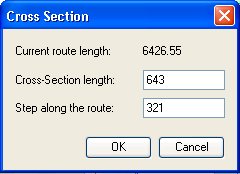 |
On the dialog the total length of the route will be indicated. Specify the desired length of the cross-section line that will move along the route and will be perpendicular to the route. Specify the step with which the cross-section line will move along the route. |
- On clicking OK a new toolbar
 will be
displayed at the top
of the Profile Window next to the main toolbar, the first cross-section line will be generated
and the profile will be extracted for it.
will be
displayed at the top
of the Profile Window next to the main toolbar, the first cross-section line will be generated
and the profile will be extracted for it.
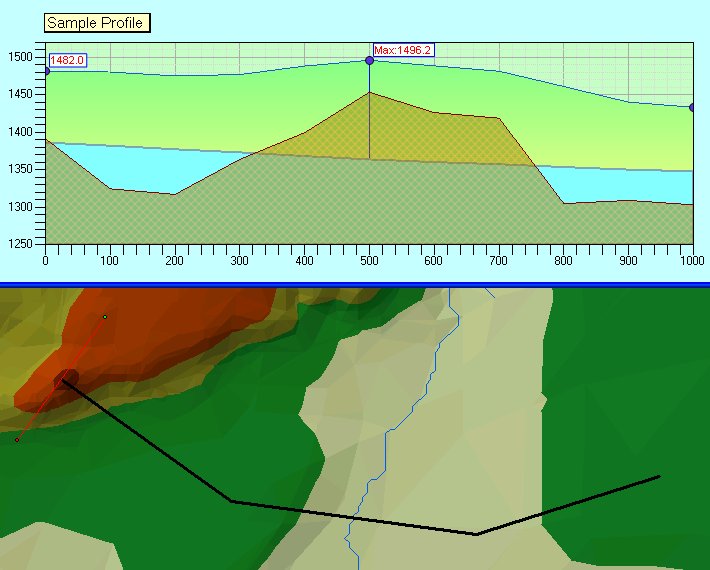
- Using the command buttons navigate the cross-section line
- On clicking the Stop button will close the animation mode and the profile of the route will be drawn in the Profile Window.
- During the animation
it is possible that the extent of the Profile view will change and go
outside of the extent of the window. The Recalculate Extent button
 can be used to recalculate the extent of the current Profile view and zoom
to it.
can be used to recalculate the extent of the current Profile view and zoom
to it.
See the Profile Extractor online tutorial for a video about this functionality.
Copyright © Ianko Tchoukanski