Inputs:
- A raster dataset representing the surface for which the analysis will be performed.
- The level (Z value) of the reference plane.
- Volume Option
- Below
- Above
- Both
Outputs:
- An integer raster with values assigned to each zone derived from the input surface raster and the level of the reference plane.
- The raster attribute table will contain
the following fields
- Value - the zone ID
- ET_Volume - the volume of the zone
in the units of the spatial reference of the input raster.
- Negative values of the volume indicate areas where the Z values of the raster surface is above the level of the polygons - CUT.
- Positive values of the volume indicate areas where the Z values of the surface is below the levels of the polygons. - FILL
- ET_Area - the area of the zone in the units of the spatial reference of the input raster
- ET_Status - Cut or Fill
Example:
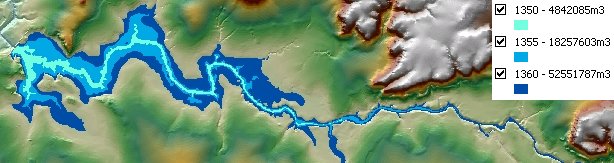
| Volume for a dam calculated for three different levels - 1350, 1355 and 1360 meters. The option to calculate the volume only below the reference plane used. The result rasters converted to polygons. The polygons downstream from the dam wall removed. |
 |
Notes:
- Initially the name of the output raster
defines the raster format
- no extension specified - ESRI binary GRID
- .img extension (for example raster1.img) - ERDAS IMAGINE image.
- .tif extension (for example raster1.tif - Tagged Image File Format (TIFF) image.
- The initial output raster format can be changed by selecting the desired output in the dialog.
- Currently only file based rasters are supported. Rasters cannot be stored in a GeoDatabase. After you get the desired result, you can export the raster to a GeoDatabase using the standard ArcGIS tools.
- The input raster must be in a projected coordinate system.
- The cells of the input raster that have the same value as the level of the plane will have assigned NODATA values
- The result raster can be easily converted to a polygon feature class using the standard ArcGIS Raster To Polygon tool
- The attributes can be transferred to the polygons by joining the Raster Attribute Table to the polygons using GRID_CODE field of the feature class and the Value field of the raster attribute table.
Command line syntax
ETS_GPRasterVolume <Input Raster> <Out Raster> <Level> <Volume_Option>
Parameters
| Expression | Explanation |
|---|---|
| <Input Raster> | A Raster dataset or Raster layer |
| <Out Raster> | A String - the full name of the output raster (A raster with the same full name should not exist). The output raster type depends on the extension of the output file(see Notes above) |
| <Level> | A Double representing the Z level of the reference plane |
| <Volume_Option> | A String representing the
volume option. Valid values - Below - Above - Below & Above |
Scripting syntax
ETS_GPRasterVolume (Input Raster, Out_Raster, Level, Volume_Option)
See the explanations above:
<> - required parameter
{} - optional parameter
All ESRI
products mentioned are trademarks of Environmental Systems Research
Institute, Inc.
Copyright: Ianko Tchoukanski